
How to install an eSIM on your mobile phone?
Detailed eSIM installation guide
This guide provides a visual and detailed installation of eSIM, complete with images and important tips for setting up eSIM on your Android or iOS device.
How to install?
- A stable internet connection is required to complete the installation process.
- The QR code can only be scanned once and cannot be transferred to another device.
- Please do not remove the eSIM from the device after installation.
- The eSIM should be named as "SimQuocTe" for easy identification.
Installation steps
Step 1
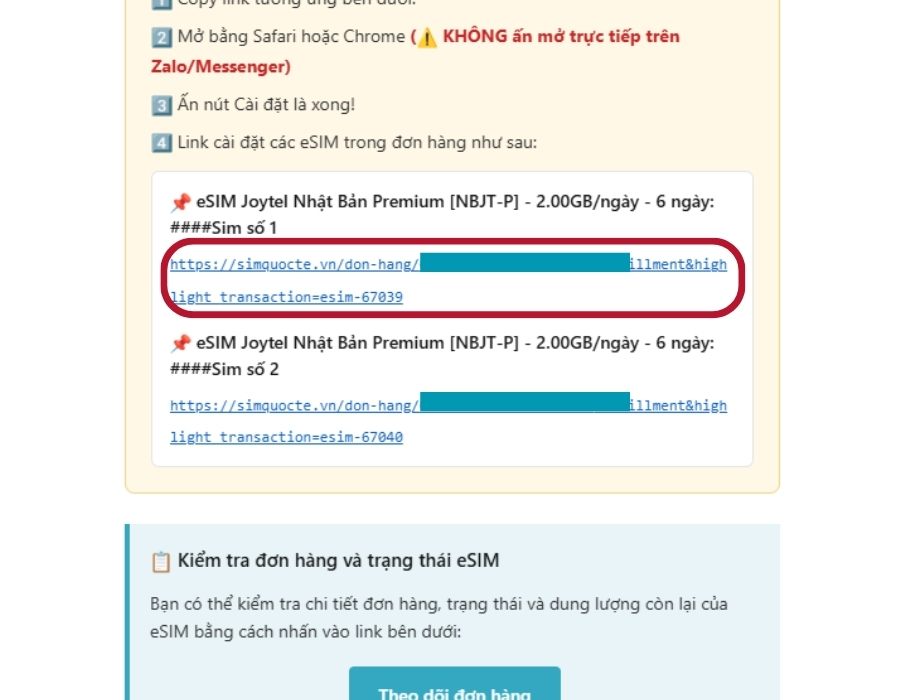
After you've completed your order, a link to receive your eSIM QR code will be sent to you via Zalo or Email. Please copy this link and open it in your Chrome/Safari browser.
IOS 17.4 and above
Manual eSIM installation on IOS device
Instructions on manually entering eSIM information on an iPhone running iOS when the QR code cannot be scanned.
Step 1
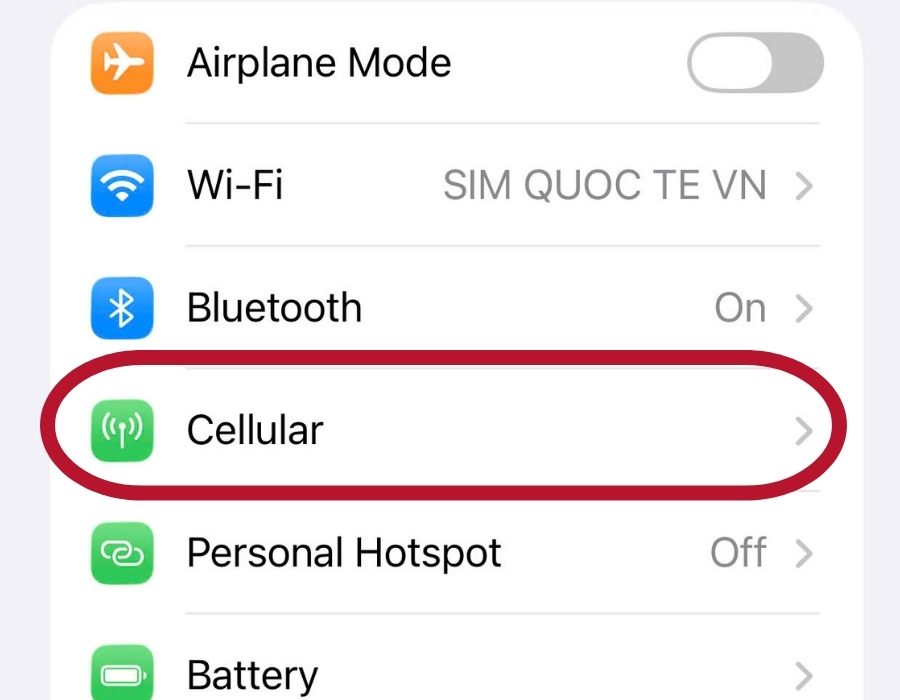
Go to "Settings" > "Cellular" (or "Mobile Services")
After installation
Check your eSIM before flying.
Turn on the eSIM and do one last check before flying:
- Go to "Settings" > "Cellular".
- Turn on eSIM (eSIM may display the carrier name).
- If your eSIM shows "activating" or "not activated," it's normal because there's no signal yet; the eSIM hasn't connected to the network specified in your data plan. Once you arrive at your destination, the eSIM will indicate successful activation.
Is it working? You can turn off your eSIM until you reach your destination. Not yet? Contact us via the Contact page or Zalo.
Have you arrived? Activate your eSIM.
To activate eSIM while abroad:
- Go to "Settings" > "Cellular".
- Select eSIM you want to turn on
- Turn on "Data Roaming" (when you tap on eSIM). Detailed instructions on how to enable data roaming
- Turn off "Allow mobile data roaming" in the "Mobile Data" section.
Need assistance? Contact us via the Contact page. Refer to the instructions for enabling data roaming here.
Is your data plan running out?
When your plan has about 20% remaining, you'll receive an email notification. Click the link in the email to choose a new plan and add it to your existing eSIM — no need to scan the QR code again.
Make sure your primary SIM card is still enabled to receive verification SMS when purchasing a new plan.
Back home? Turn off or delete eSIM
Welcome back! Simquocte will guide you on how to disable/delete eSIM.
- Go to "Settings" > "Cellular".
- Select eSIM you want to turn off / delete
- - To turn off eSIM: Turn off the "Enable this line" switch to disable eSIM.
- - To delete eSIM: Scroll to the bottom => Tap the "Delete eSIM" button.
Check eSIM device compatibility
Check whether your phone supports eSIM — auto-detect your device or search by name.
⚠️ Do hạn chế thông tin nên kết quả kiểm tra của chúng tôi chỉ mang tính chất tham khảo (độ chính xác là 99%).
Xin quý khách lưu ý các trường hợp sau:
- iPhone bản Trung Quốc / Hong Kong / Macau thường không có eSIM (2 SIM vật lý).
- Một số máy Android bản China cũng không hỗ trợ eSIM.
- Điện thoại khoá mạng cũng không thể sử dụng esim du lịch
Để chắc chắn sử dụng được esim:
- Vui lòng ấn *#06# trên màn hình quay số và sau đó ấn nút Gọi. Nếu kết quả không hiện ra thông số EID thì thiết bị của Quý khách không hỗ trợ esim
- Kiểm tra máy có giới hạn sim không bằng cách truy cập Cài đặt (Settings) / Cài đặt chung (General) Giới thiệu (About) / kiểm tra tại dòng Khoá mạng (Network Provider Lock)
Search Device
Search for devices by name to manually look up compatibility
Enter device name (e.g., iPhone 14, Samsung Galaxy S23...)
List by Manufacturer
View the list of eSIM-compatible devices by manufacturer
No manufacturer data available